EXISTING PHOTO / READABLE PDF
Scan a Document from a Photo to PDF
Already have a photo of the paper? Straighten the page, keep the details that matter, and download a PDF you can attach or upload.
By ScanDocument · Updated September 29, 2026
Preview: up to 3 pages per PDF. No account needed. View plans
1. Start with the original photo
Open ScanDocument on the device that holds the image and choose Upload files. Supported inputs are JPEG, PNG and WebP, up to 20 MiB per photo. Prefer the original file over a screenshot or a compressed copy from a messaging app.
If your photo is HEIC, convert it to JPEG or PNG first. Renaming its extension does not convert the image. On a Mac, Preview can export an image in another format; see the alternative below.
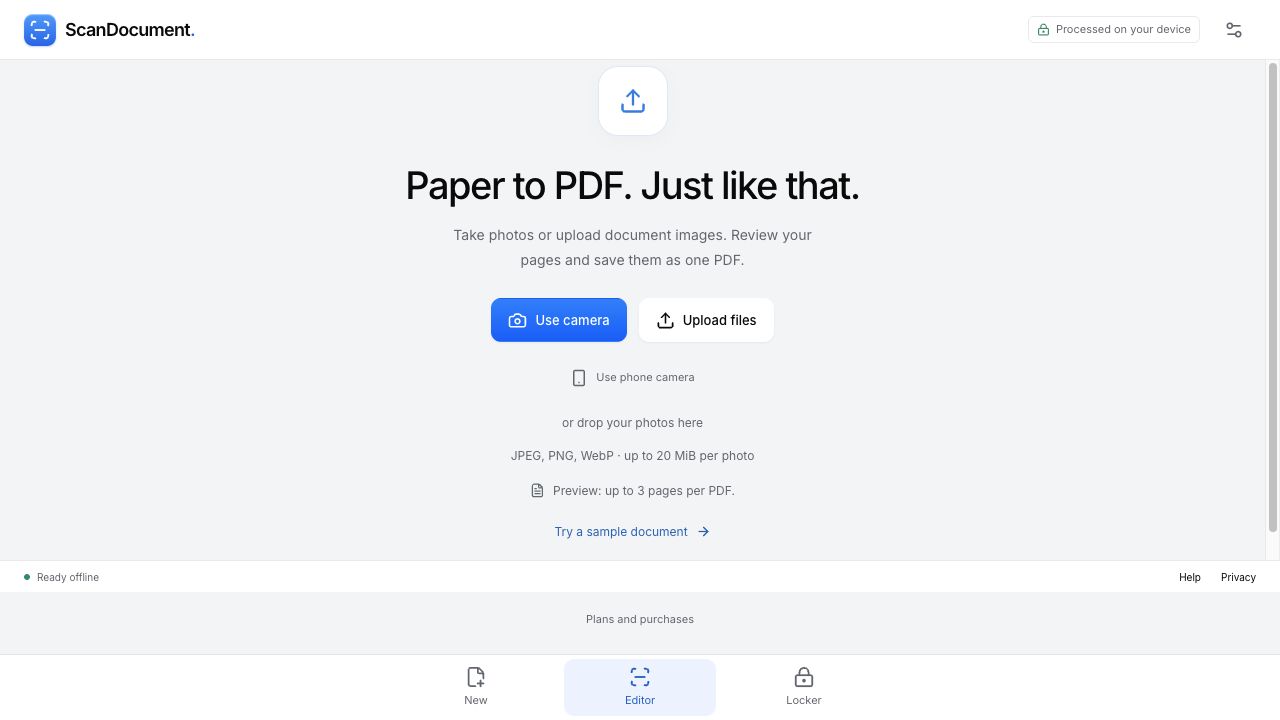
2. Put each corner on the paper’s edge
The crop review opens after import. Check the four corner handles against the paper. Drag a handle to adjust it, or select a corner and use the arrow buttons for fine adjustment. Keep dates, signatures and notes near the margins inside the boundary. Choose Apply crop when all four edges look right.
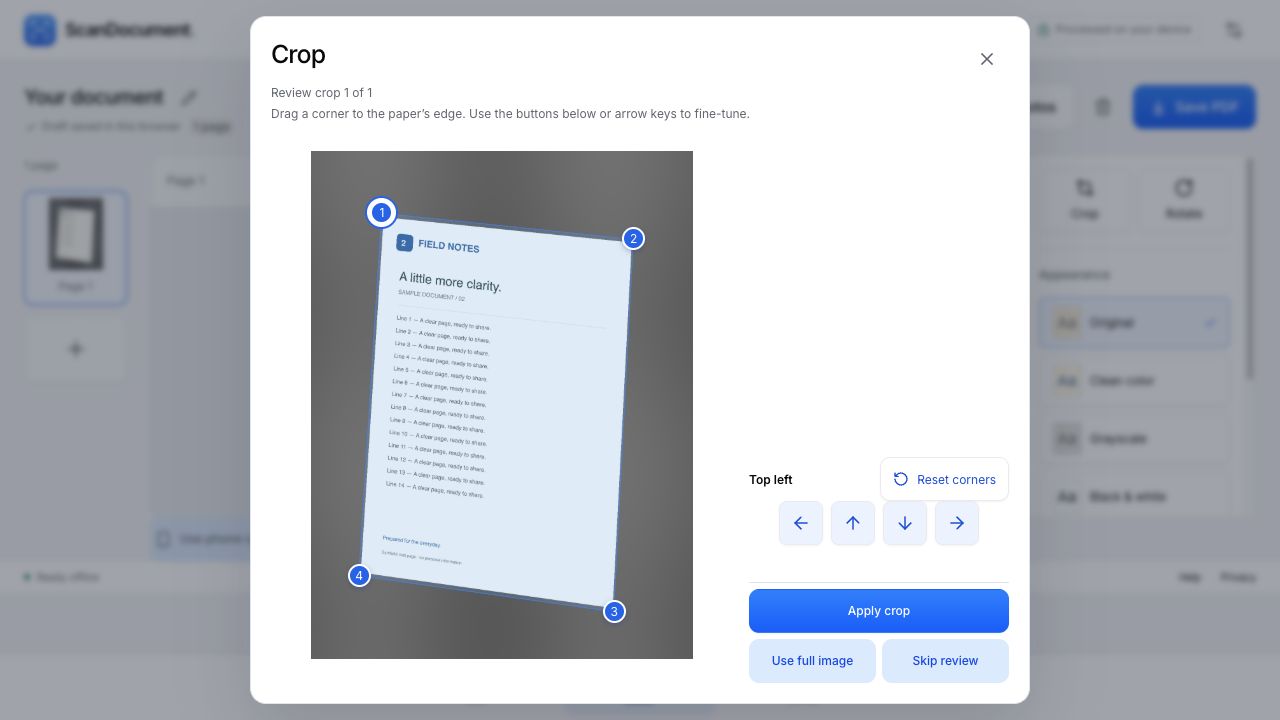
If detection cuts off content, choose Use full image to retain the whole photo, or reopen Crop from the editor and correct the corners. Skip review is not the same as keeping the full image. Always inspect the result.
3. Keep important colors and small text
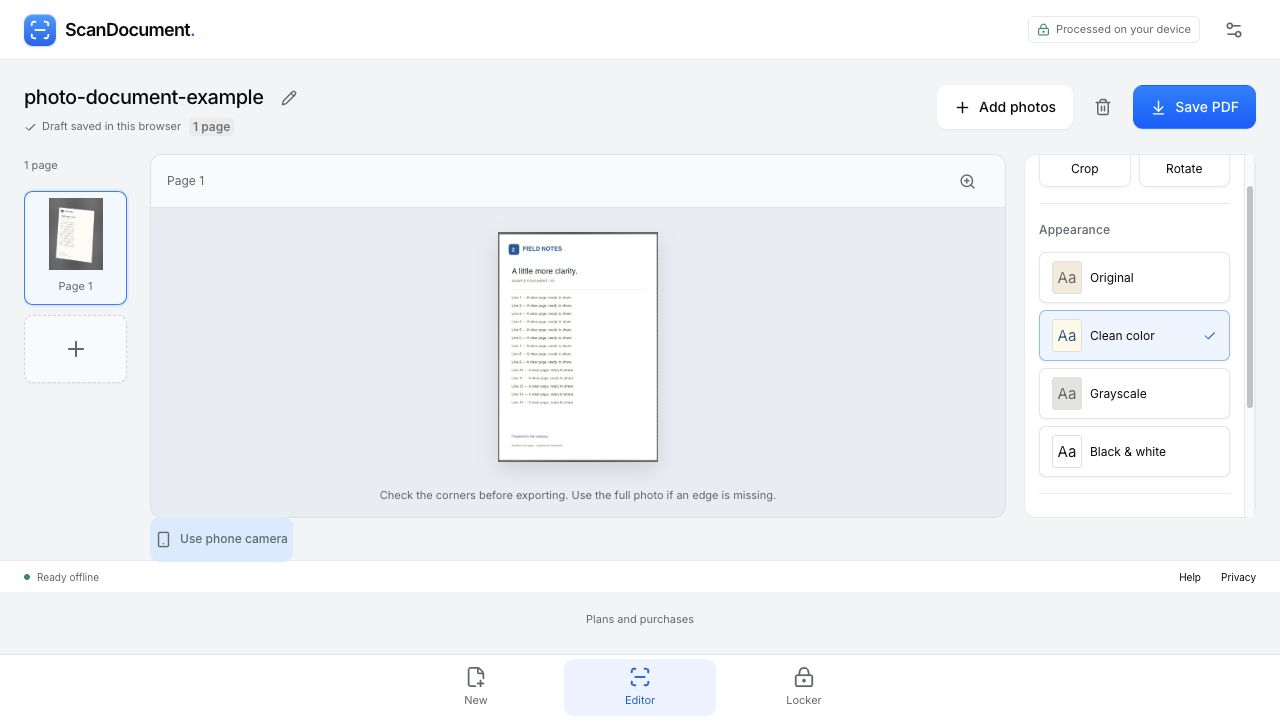
Use Rotate if the page is sideways. Open the full-size page preview to read small text; the editor thumbnail is too small to judge fine detail. Compare Original and Clean color before choosing a look.
Our synthetic page has a blue heading and footer. We chose Clean color and checked that both remained visible in the downloaded PDF. Grayscale and Black & white remove color information. If a stamp, highlight or colored annotation matters, keep a color version and check it against the original.
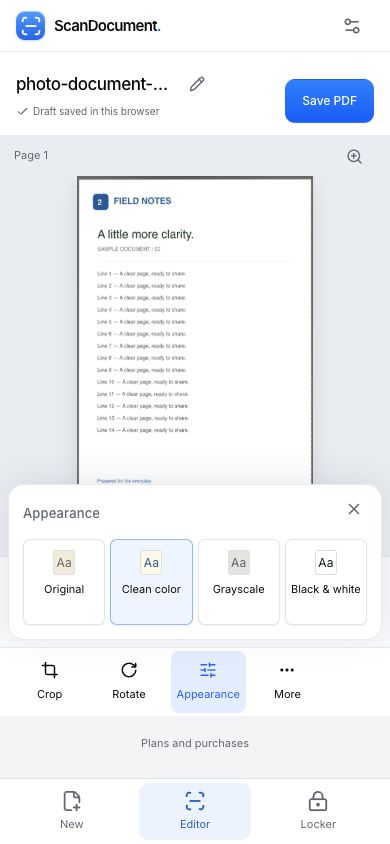
On a small screen, tap Appearance, choose Clean color and tap Close. If faint writing disappears, return to Original or use a better photo. A cleaner background does not necessarily mean a more useful document.
For several sheets, use Add photos within the same document, then check their order. Follow the tested multi-page PDF walkthrough. Preview: up to 3 pages per PDF. No account needed.
4. Name the file and generate the PDF
Choose the pencil beside the document title to rename it. We used photo-document-example. Choose Save PDF, set the quality and page size, then choose Generate PDF.
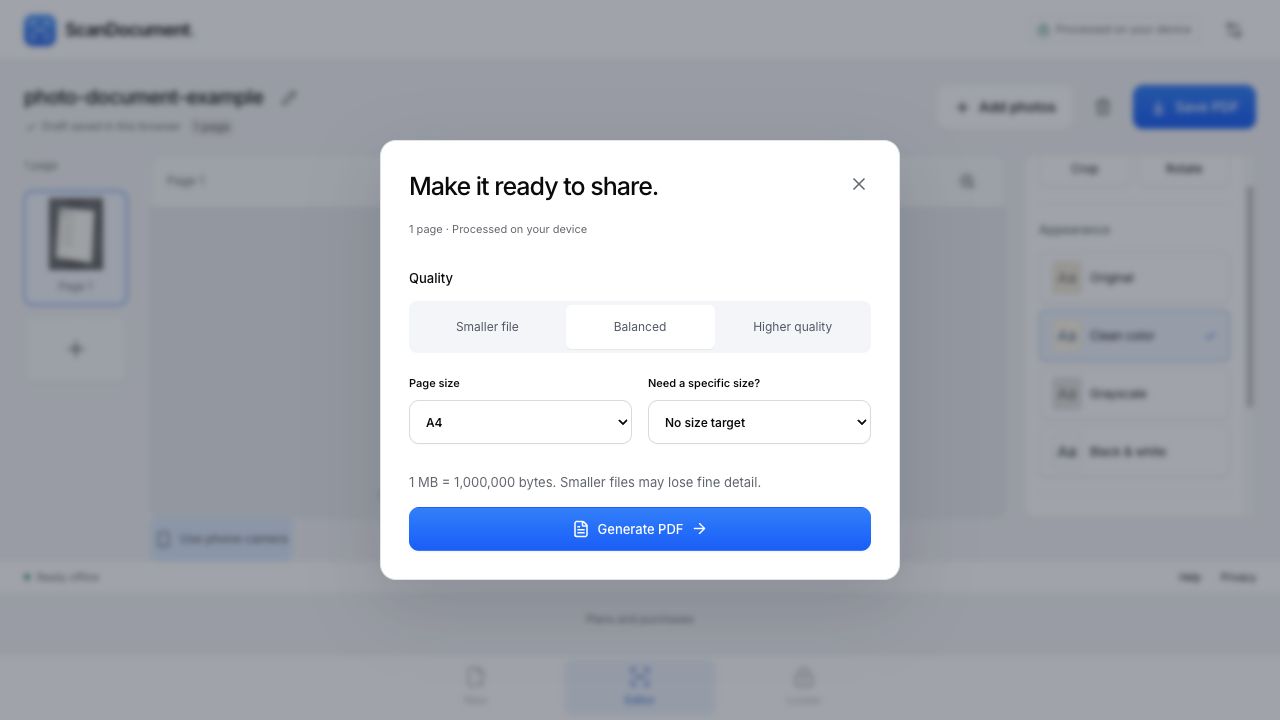
If an upload form specifies a size limit, check the actual byte count after generation. Reducing quality may lose fine detail. The PDF size-limit guide explains how to check the result before uploading.
5. Download, open and check the actual file
When the PDF is ready, check its filename and choose Download PDF. Draft saved in this browser means the editable draft is here; it does not mean a PDF has already been downloaded.
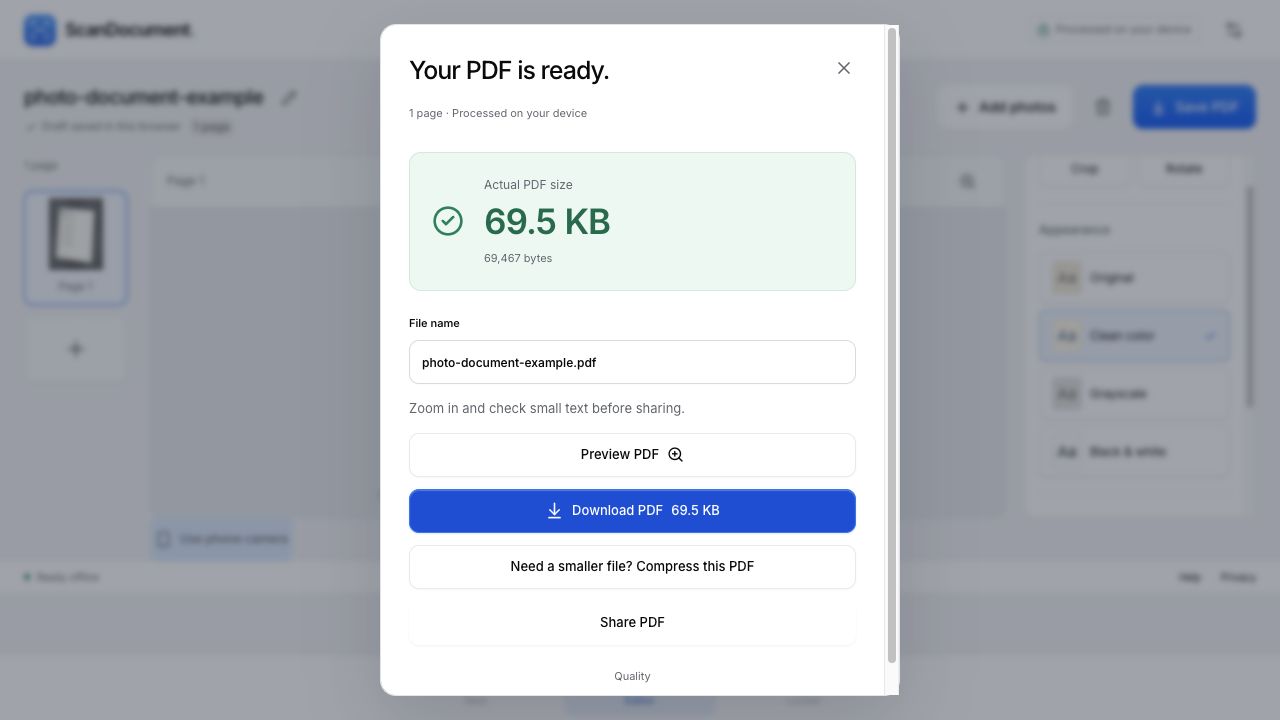
Find the file in your browser’s downloads list. On a computer, show it in Finder or File Explorer; it is usually in Downloads unless you selected another folder. Open the downloaded PDF and zoom in to check names, numbers, margins and any colored marks before sharing it.
Open the actual one-page example PDF. It contains synthetic paperwork with no personal information. The blue heading, all 14 numbered lines and the small footer are retained. A thin dark edge remains around the page; preserving the content mattered more than trimming every trace of background.
When the result needs another look
- The PDF is blurry or a corner is missing
- Check the original photo first. If the information is present, correct the crop or use the full image. If glare, blur or a finger already obscured it, take another photo with even light and all four edges visible. Higher export quality cannot reconstruct missing text.
- Can I search, copy or edit the words?
- This workflow creates an image-based PDF. It does not add OCR or turn the page into an editable form. If the recipient needs searchable text, use a tool with text recognition and check the recognized words for errors.
- I cannot find the file to attach
- Make sure you chose Download PDF and that the download finished. Search the browser’s downloads list for your chosen name. A ScanDocument draft URL is not a substitute for the PDF attachment. The scan-to-email guide shows the handoff.
- Where are the photos processed?
- In this existing-photo workflow, editing and PDF generation happen on your device. The optional Use phone camera feature is a different route: photos are encrypted on the phone and pass through our transfer service; document files are not stored on the server. Read the privacy details.
When a built-in alternative is enough
On a Mac, if the photo is already straight and readable, open it in Preview, choose File → Export, choose PDF from Format, and save it. Preview can also convert HEIC to JPEG or PNG. Follow Apple’s image-conversion instructions for the available formats.
Adobe Scan also supports importing existing photos; its official iOS import guide describes photo selection and editing. Check its account and cloud-storage behavior before using it for sensitive documents. These alternatives are documented options, not native-app tests performed for this article.
If you still have the paper and want to capture it directly, use the iPhone scanning guide or the phone-to-computer walkthrough.
How we checked this guide
On September 29, 2026, we imported a synthetic color-document photo, applied its crop, compared appearance options and downloaded the linked one-page PDF. We opened and rendered that file to check the text and color. These original screenshots come from a local preview with unchanged scanner code, in Chromium 153 on macOS 26.6.2. We also checked the article and controls at a narrow browser width. This does not verify a physical camera or downloading on Android or iOS.
Turn your existing photo into a usable PDF
Choose my photo ↗Preview: up to 3 pages per PDF. No account needed.