IPHONE / SCANDOCUMENT
How to Scan a Document on iPhone to PDF
Scan paper with Notes or Files. Already have a photo? Crop it and save a PDF with ScanDocument.
Preview: up to 3 pages per PDF. No account needed. View plans
By ScanDocument · Updated September 13, 2026
01 / IN YOUR BROWSER
Scan a document photo to PDF, step by step
Choose a JPEG, PNG or WebP. Follow the marked controls below to make a PDF on your device.
Follow the outlined controls, then try the same steps with your photo. These are actual app screens in a mobile browser layout, using a sample document.
1Upload your document photo
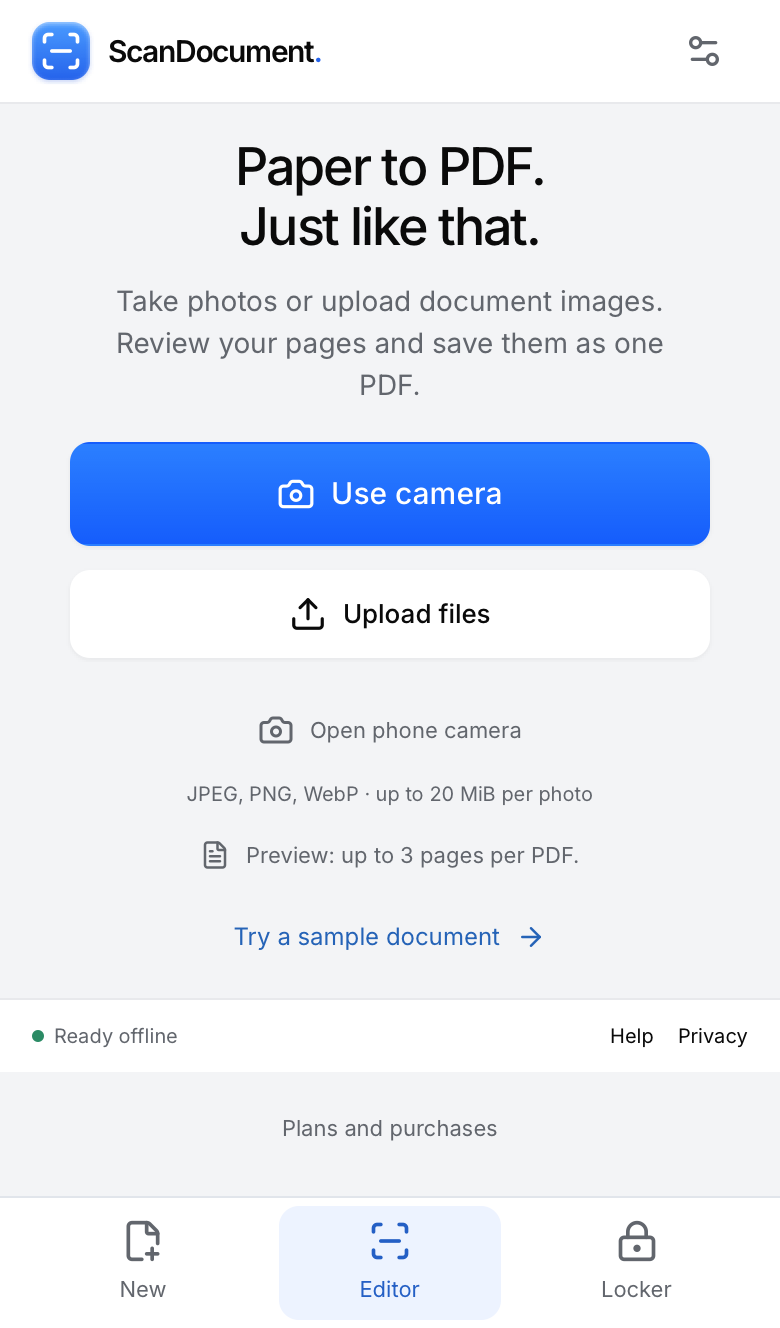
ATap Upload files and choose your original photo.
For new paper, use Use camera instead. Capture your pages, then return to the editor.
2Review the crop
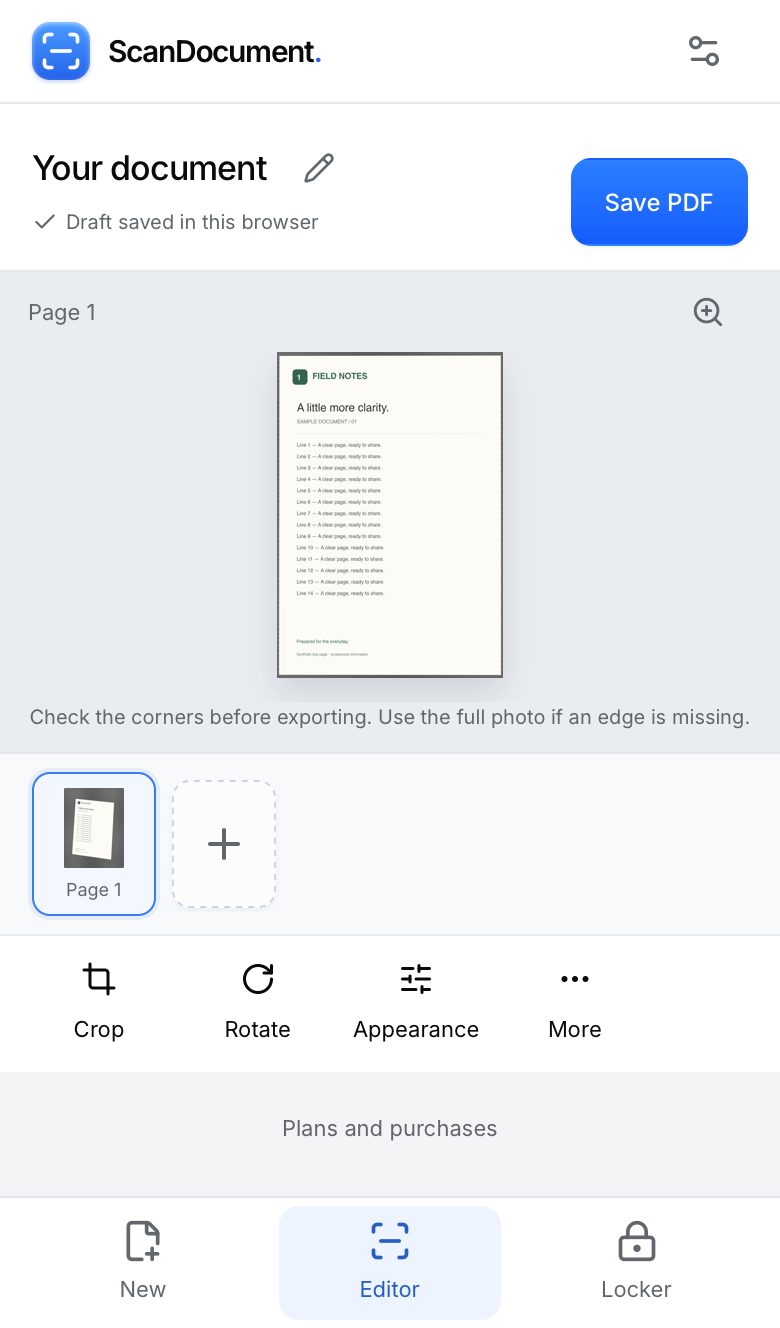
ACrop opens after upload. Tap Crop here to reopen it later.
Check that the whole page is visible. You can skip crop review if the photo is ready.
3Adjust the page boundary
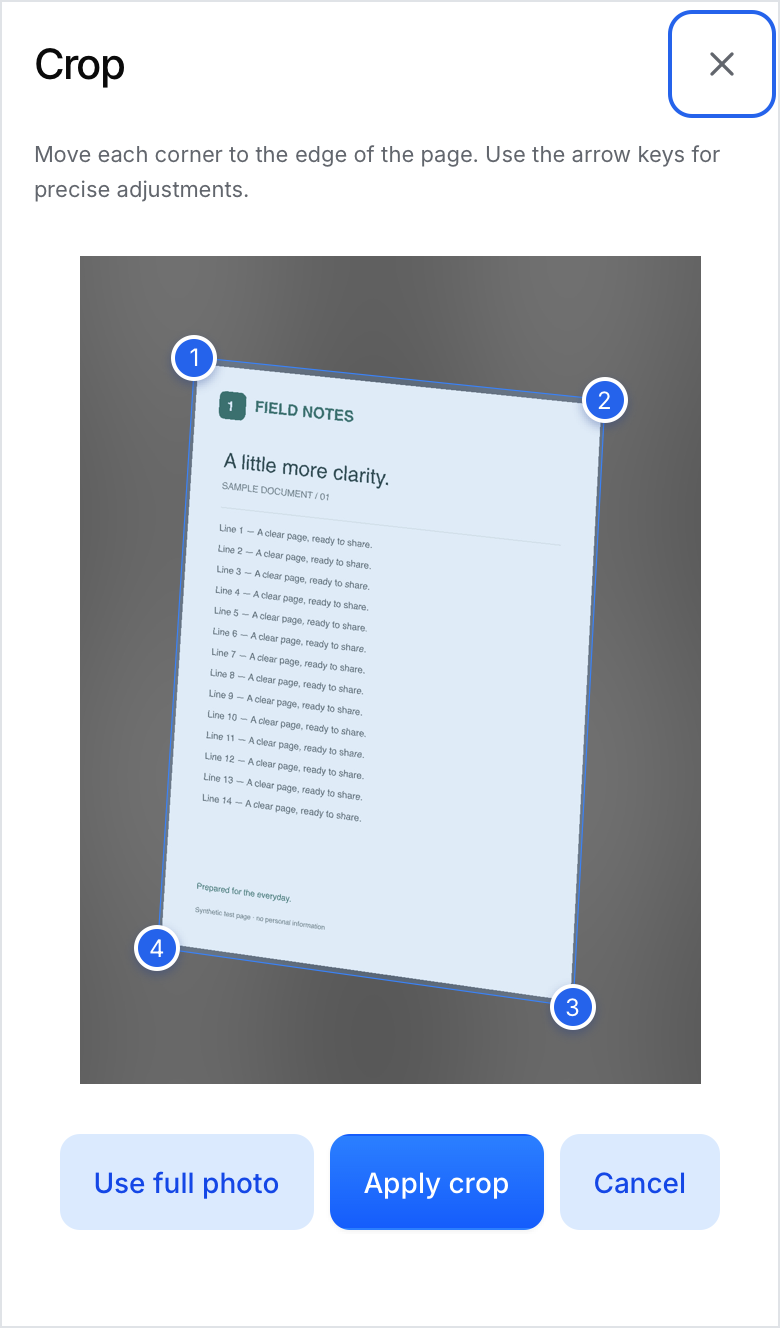
ADrag each of the four corner handles to the paper’s edge.
BTap Apply crop to straighten the page.
Keep every line inside the boundary. Choose Use full image if an edge is missing.
4Choose a readable appearance
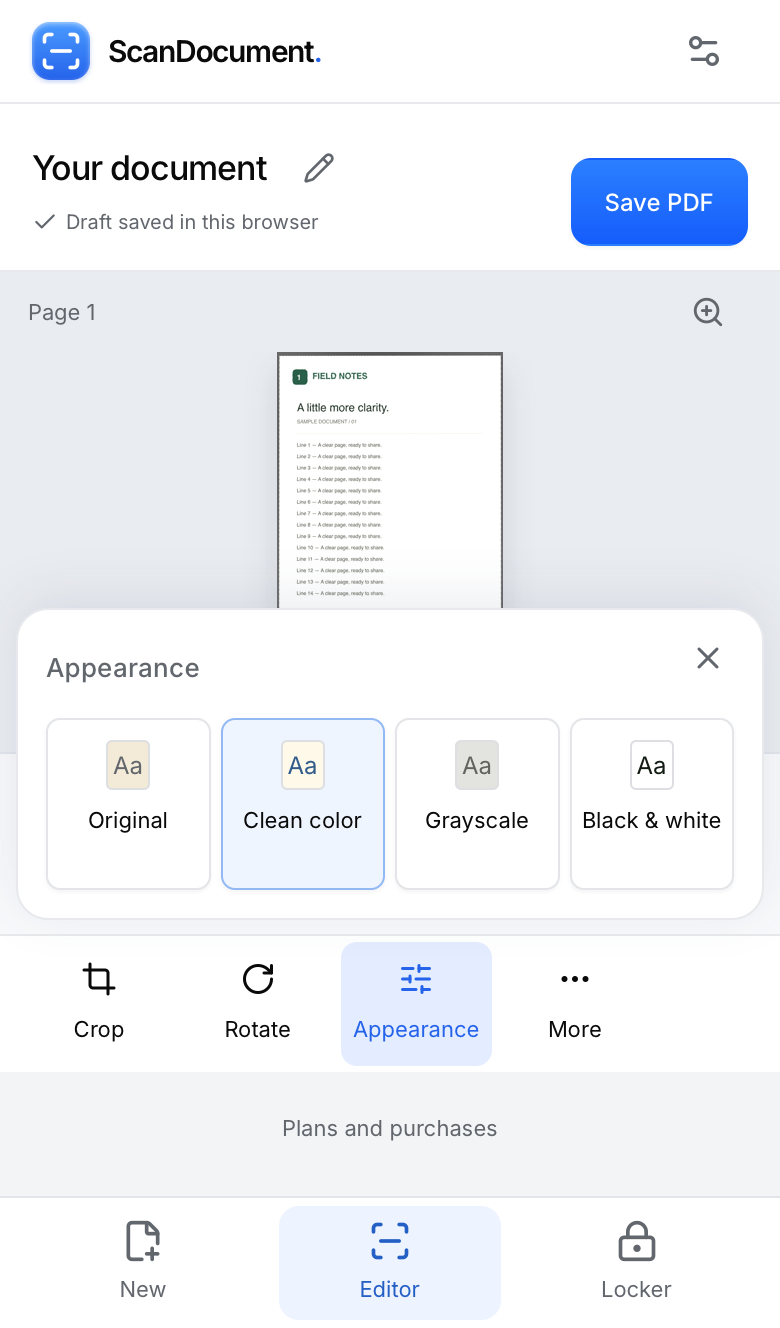
AOpen Appearance and compare the styles. This example uses Clean color.
BWhen the page looks right, tap Save PDF.
For several pages, use Add photos first. The current preview supports up to three pages per PDF.
5Generate the PDF
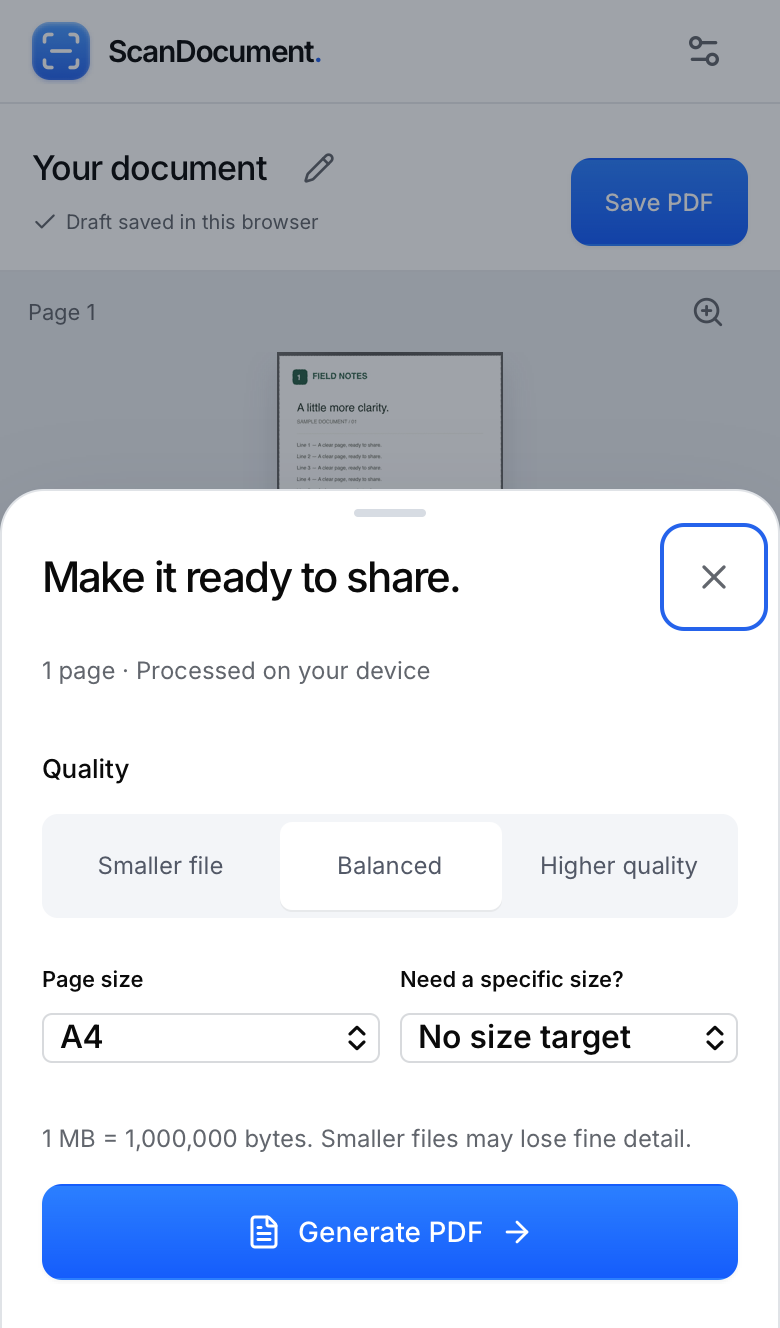
AChoose a quality. Balanced is a useful starting point.
BTap Generate PDF after choosing your page size.
If an upload form has a size limit, set a target here. Smaller files can lose fine detail.
6Check the size and download
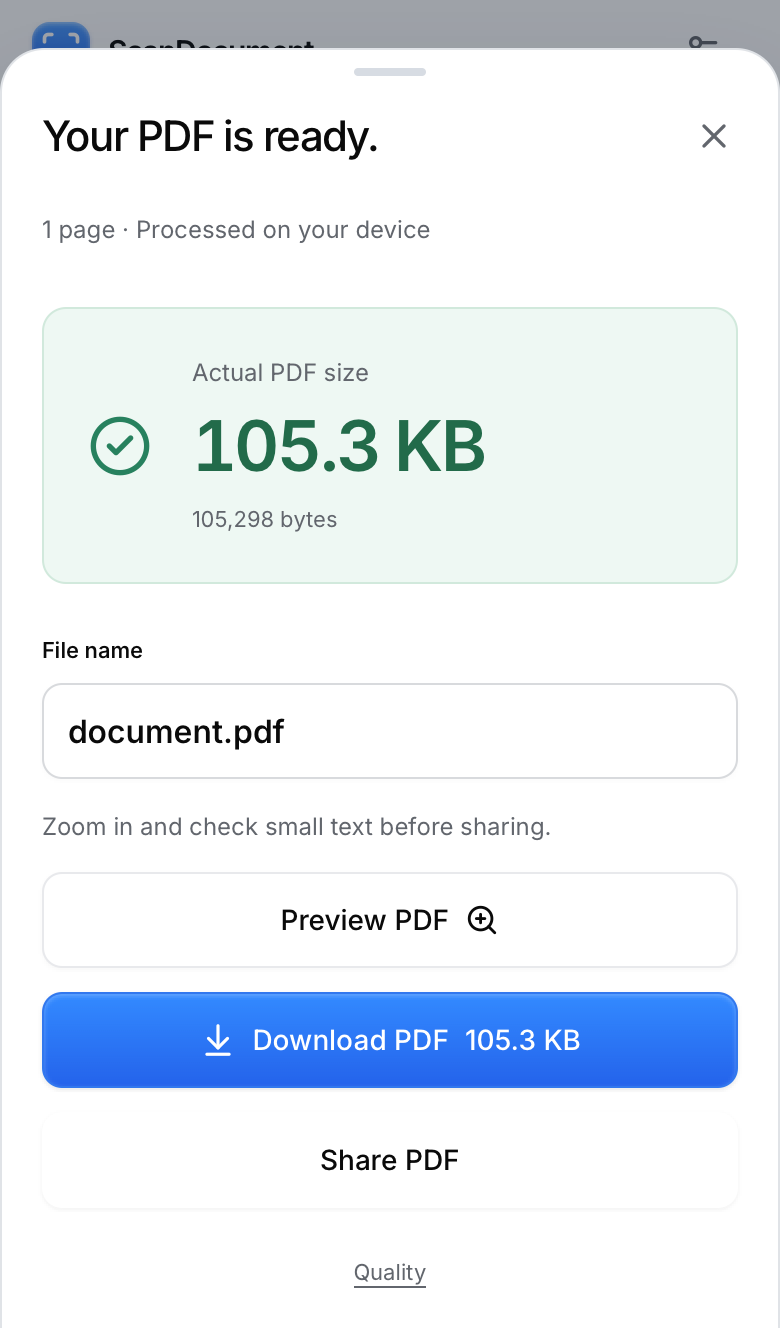
ACheck the actual file size, then open the PDF preview to inspect the pages.
BTap Download PDF to save the finished file.
Open the saved PDF and check the small print before sharing or uploading it.
Open the PDF made in these screenshots ↗ · One sample page, 105.3 KB
Single-device editing and PDF generation happen locally. Optional phone-to-computer transfer sends encrypted photos through our relay. How document privacy works.
02 / IPHONE NOTES
Scan a document with iPhone Notes
Notes includes a document scanner, so you can capture a new page without installing another app.
- Create or open a note. Use the attachment menu and choose Scan Documents.
- Frame the whole sheet. Let automatic capture detect it, or use the shutter to take the scan yourself.
- Review the edges and adjust any misplaced corners. Keep the page or retake it if the text is blurred.
- Capture the remaining pages before finishing. Tap Done to keep the scanned PDF in your note.
These steps follow Apple’s Notes guide. Menu names and icons can vary with your iOS version.
03 / IPHONE FILES
Scan a document with iPhone Files
Use Files when you want to choose where the finished document is saved.
- Open Files and use the More menu to start Scan Documents.
- Capture each sheet and check its corners. Add all the pages that belong in this document.
- Finish the scan, choose the destination folder, then save. Remember that location for the upload or attachment step.
Open the saved file and inspect every page before using it. See Apple’s current scanning instructions for the native controls.
Common iPhone scanning questions
Why won’t my HEIC photo open?
HEIC support depends on the browser. If the scanner rejects it, export a JPEG copy and choose that file. Changing the filename extension does not convert the image. Keep the original until you have checked the PDF.
Can I scan several pages into one PDF?
Yes. In Notes or Files, continue capturing before finishing the scan. In ScanDocument, add your photos to the same document and arrange them before exporting. The browser preview allows up to three pages. See the multiple-page walkthrough.
Why is the text still blurry?
Perspective correction straightens the page but cannot restore missing detail. Retake the photo in even light, clean the lens, keep the phone steady and avoid glare. Inspect names, numbers and small print at full size.
Will ScanDocument make the text searchable?
No. Its PDF contains page images; OCR and searchable text are not included. Keep this in mind if the recipient specifically requires a searchable PDF.
Have a document photo ready?
Scan a photo to PDF ↗Preview: up to 3 pages per PDF. No account needed.
Scan a Document from a Photo to PDFHow to Scan Multiple Pages into One PDF