PAPER / PDF / EMAIL ATTACHMENT
How to Scan a Document and Email It as a PDF
Someone needs your paperwork by email. Here is how to make one readable PDF, find it on your computer, and attach the right file.
By ScanDocument · September 23, 2026
Preview: up to 3 pages per PDF. No account needed. View plans
1. Get the document into the scanner
Put the paper on a flat surface in even light. Keep all four corners in the photo and check small text before continuing. Avoid glare across names, dates or signatures.
Open ScanDocument on the computer where you write email. Choose Upload files if your document photos are already there. JPEG, PNG and WebP are supported; changing a filename from .heic to .jpg does not convert it.
If the paper is beside you but the photos are not on the computer, choose Use phone camera and follow the phone-to-computer instructions. Confirm the matching number and wait for Received on computer before returning to the editor. Our example below starts with an existing synthetic image.
2. Review the pages and name the file
For pages received from your phone, select a page and choose Crop first.
When crop review opens, check the corners, adjust them if needed, and choose Apply crop. In the editor, inspect each page with the full-size preview. Use Rotate for sideways text and compare the appearance options. Retake a blurry photo; a filter cannot restore missing detail.
For more pages, choose Add photos in the same document and check their order. See the multiple-page PDF guide for the full process. Rename the document using the pencil beside its title. A name such as document-email-example is easier to recognize in the attachment picker than several files called “document.”
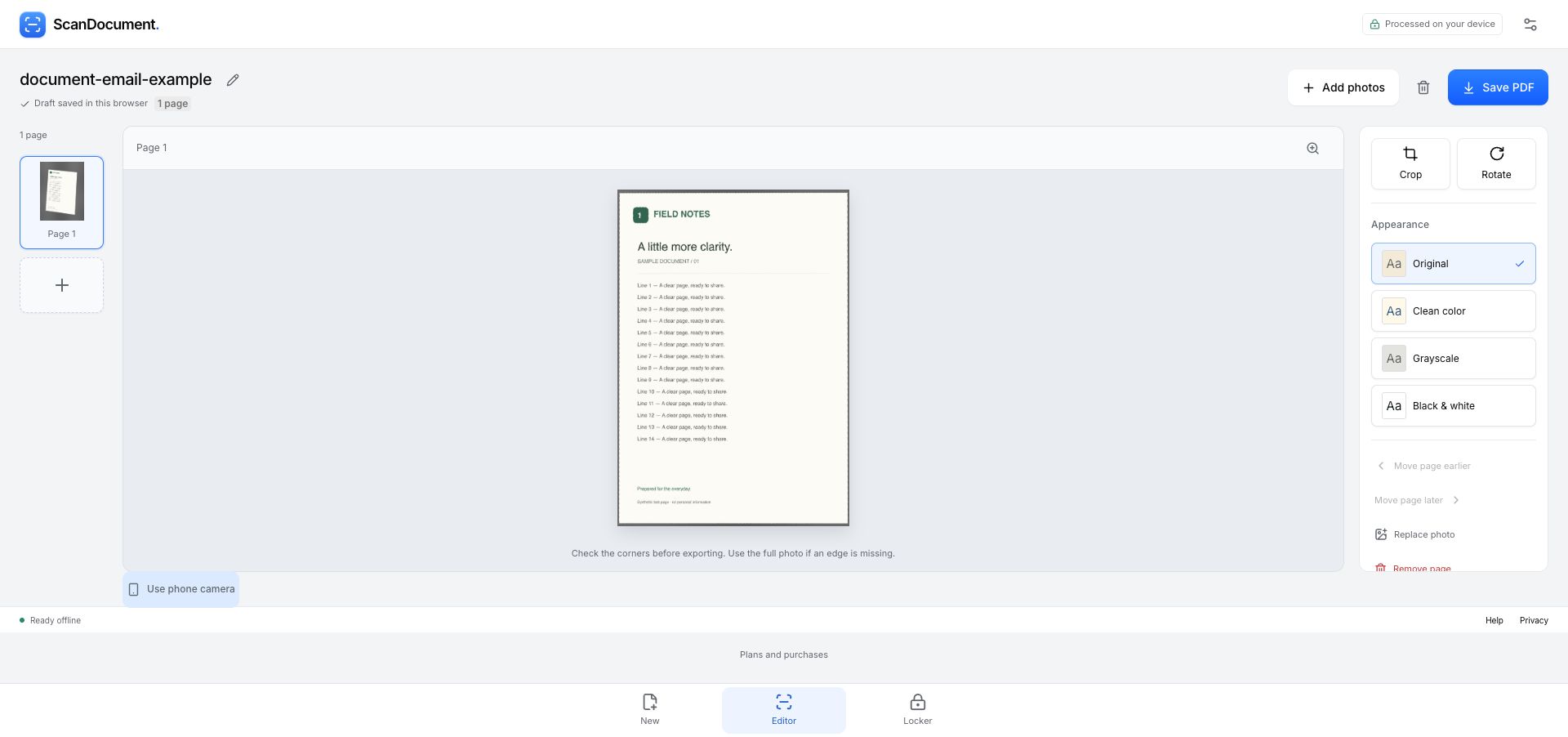
3. Download the actual PDF
Choose Save PDF, select the quality and page size, then choose Generate PDF. We used Balanced quality and A4. When the result is ready, check the filename and select Download PDF.
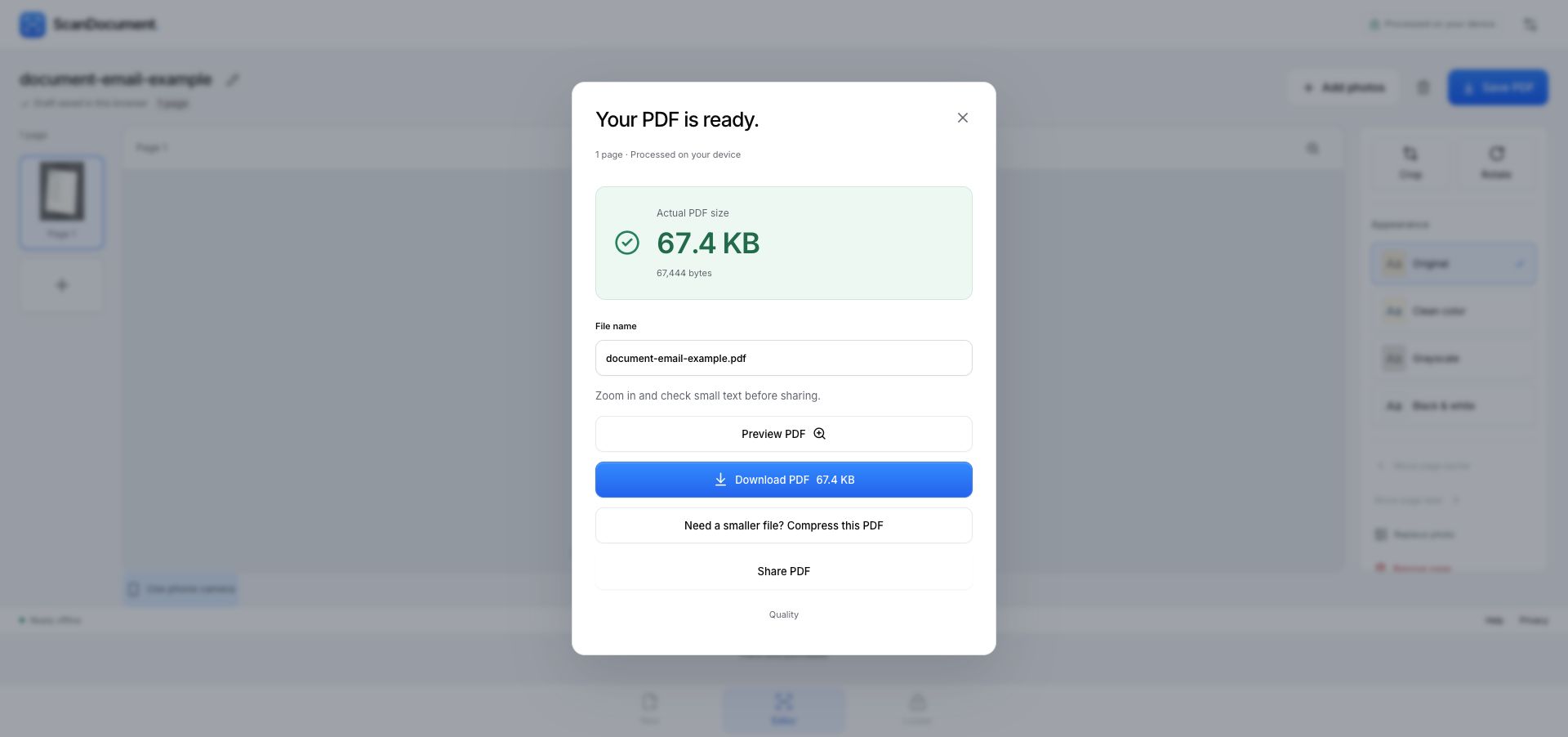
Find the file in your browser’s downloads list. Use its option to reveal the file in Finder on Mac or its folder in File Explorer on Windows. Downloads is a common location, but your browser may use another folder or ask where to save.
Open the downloaded file and check the page count, orientation, smallest text and edges. You can open our actual one-page sample PDF to inspect the result. This is an image-based PDF without OCR; it does not make the photographed text searchable.
4. Attach the file to an email
Here is the desktop Gmail route. Other email apps use similar attachment controls, but their labels can differ.
- Choose Compose and write your message. Confirm the recipient’s address before sending.
- Choose the paperclip, labelled Attach files. Select the downloaded PDF from the folder you found above and choose Open.
- Wait until the upload progress disappears and the filename appears as an attachment. Check the name, extension and size. Attach the PDF, rather than the original camera images or a link to your ScanDocument draft.
- Open or download the attached copy to check that it is the intended version. If you edited the scan after attaching it, remove the old attachment and attach the newly exported file.
- Review the recipient, message and attachment once more, then choose Send when ready.
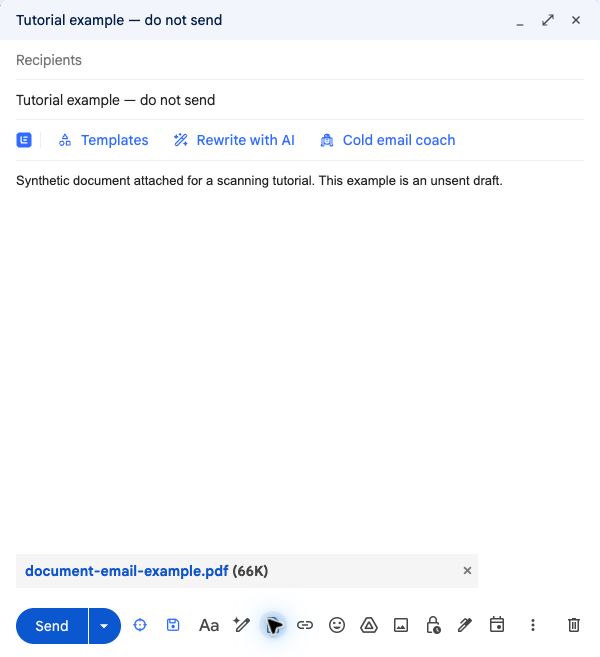
Our test stopped at the draft. We downloaded the attachment again and confirmed it matched the original PDF byte for byte. No email was sent, so this does not demonstrate delivery to a recipient.
If the attachment does not work
- I cannot find the PDF
- Return to the export dialog and check that you chose Download PDF. “Draft saved in this browser” means the editable document is saved in ScanDocument, not that a PDF is in your Downloads folder. Check the browser’s downloads list for the location and any failed download.
- The file is too large
- Check both the email service’s limit and any limit the recipient gave you. Personal Gmail accounts allow up to 25 MB of attachments in total; work and school limits are set by the administrator. Gmail may replace oversized attachments with a Google Drive link. See Google’s current attachment instructions. If a file attachment is required, follow our PDF-too-large-to-email guide, then inspect the smaller copy before attaching it.
- The upload is stuck
- Keep the draft open and check your internet connection. Wait for the attachment to finish uploading before sending. A PDF on your computer is not yet an uploaded email attachment.
- The recipient needs searchable text or a particular form
- This scanner exports page images. Check the recipient’s requirements before sending: a scanned copy may not replace an editable form or an OCR document.
Already using Mail on an iPhone?
You may be able to do the whole task there. Apple’s Mail app can scan paper directly into a PDF attachment: open attachment actions in the message, choose Scan Document, capture and keep the pages, then save. Follow Apple’s current Mail instructions for your version. This native alternative is documented by Apple; it was not physically tested for this walkthrough.
About this walkthrough
Original screenshots captured September 23, 2026, in Chrome 153 on macOS 26.6.2. We uploaded an existing synthetic document image, applied its crop, downloaded the PDF, attached it to an unsent Gmail draft, and checked the downloaded attachment. This was a desktop browser test, not a physical phone-camera test. The screenshot is limited to the draft so account and inbox details are excluded.
Make a PDF you can attach
Start your document ↗Preview: up to 3 pages per PDF. No account needed.