SEVERAL PAGES / ONE PDF
How to Scan Multiple Pages into One PDF
Turn two or three document photos into one PDF. Check every crop, put the pages in reading order, and download the complete file.
By ScanDocument · Updated September 27, 2026
Preview: up to 3 pages per PDF. No account needed. View plans
The short answer
Keep the photos in one document: choose Upload files, review each page, then use Move page earlier or Move page later to fix the order. Choose Save PDF → Generate PDF → Download PDF once the whole packet is ready.
This walkthrough starts with image files. If your scans are already separate PDFs, use a PDF merger; the scanner upload accepts JPEG, PNG and WebP images.
1. Add the pages to one document
Open the scanner and choose Upload files. Select the original photos, up to 20 MiB per image. To add a missing sheet later, use Add photos in the existing document. Starting a new document separates it from the current packet.
For paper you have not photographed yet, capture each side separately with all four corners visible. If you want to use a phone while working at a computer, follow the phone-to-computer guide, then return here to review the received pages.
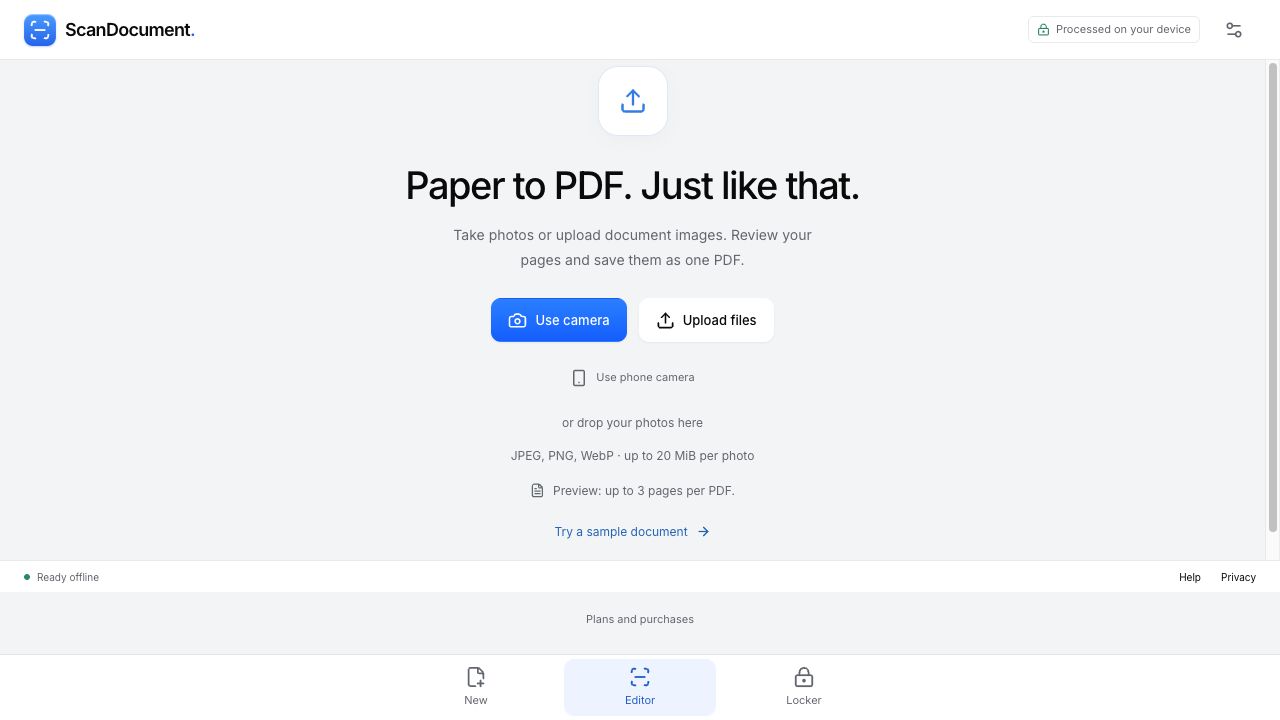
Our example has three numbered sheets: a cover, a checklist and a landscape timetable. We deliberately imported them in the order 3, 1, 2 to demonstrate the correction. Preview: up to 3 pages per PDF. No account needed. For a longer packet, check the current limits and plans before starting.
2. Review every crop
With several images, crop review runs through them in sequence. Place the four corners around the paper and choose Apply & next; the final review uses Apply crop. Keep names, notes and page numbers inside the boundary.
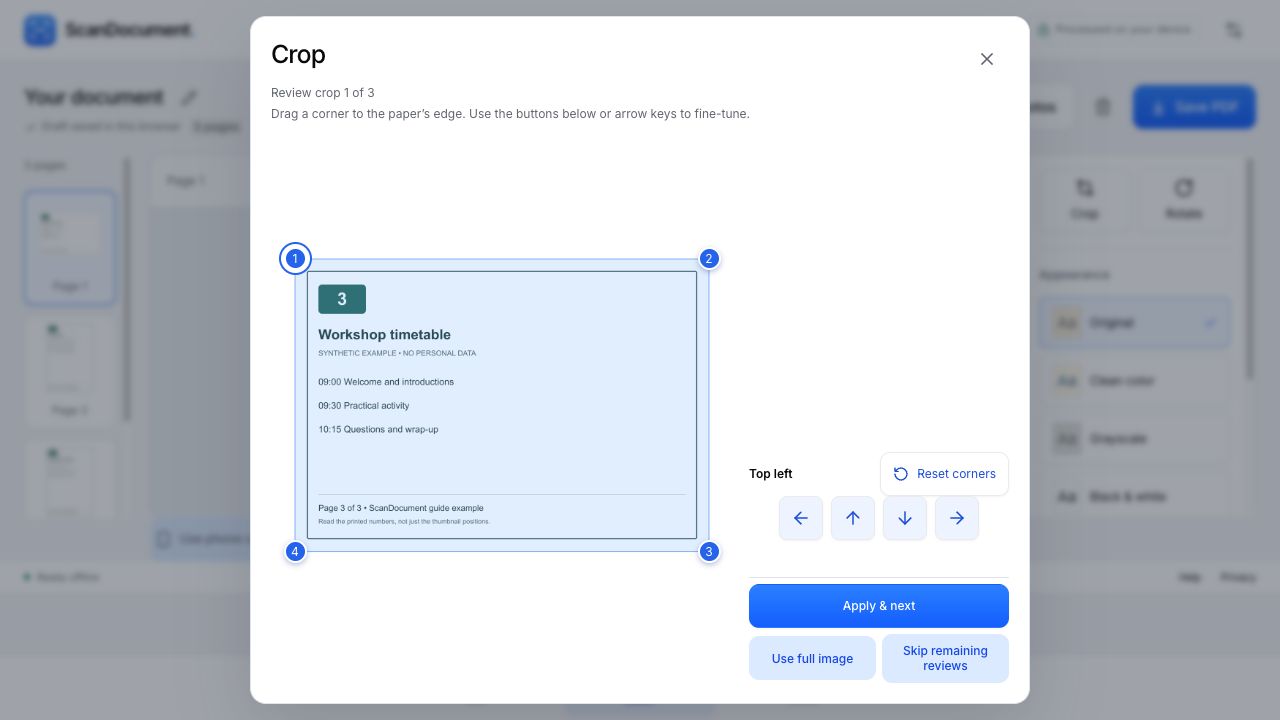
If the whole image is already the page, choose Use full image. Skip remaining reviews bypasses the remaining checks; it does not promise to preserve the full images. You can select a page and reopen Crop from the editor.
3. Fix the reading order
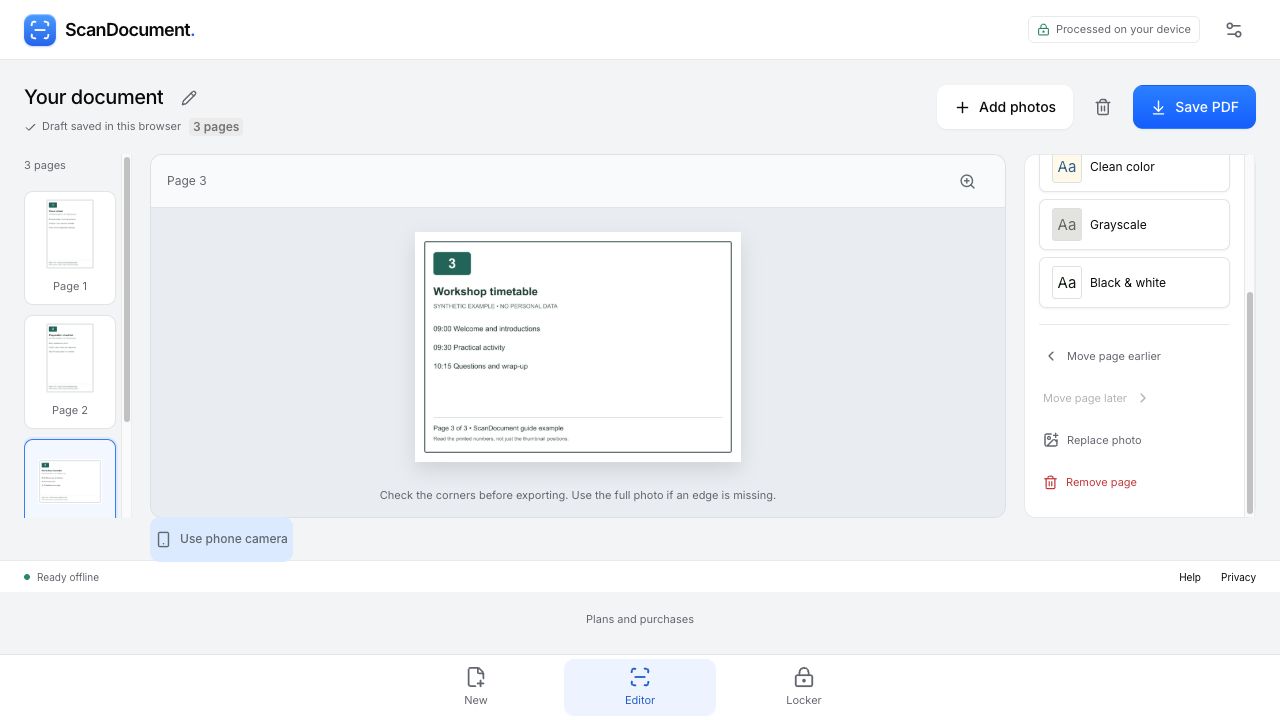
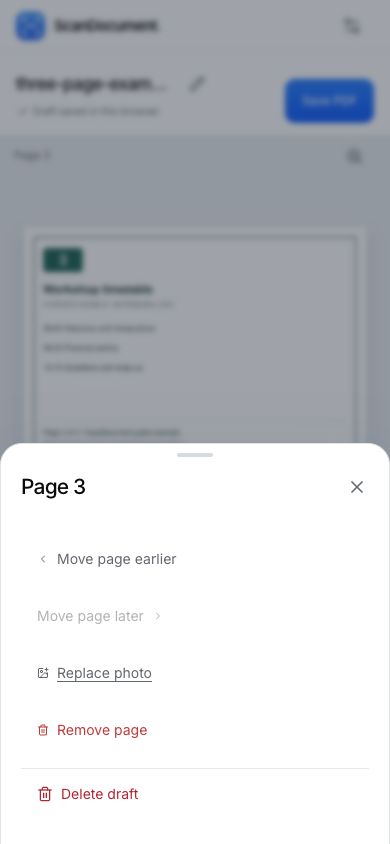
Select the thumbnail of the page you want to move. Use Move page earlier or Move page later until it is in the right position. On desktop, scroll down within the right-hand controls if these buttons are not visible.
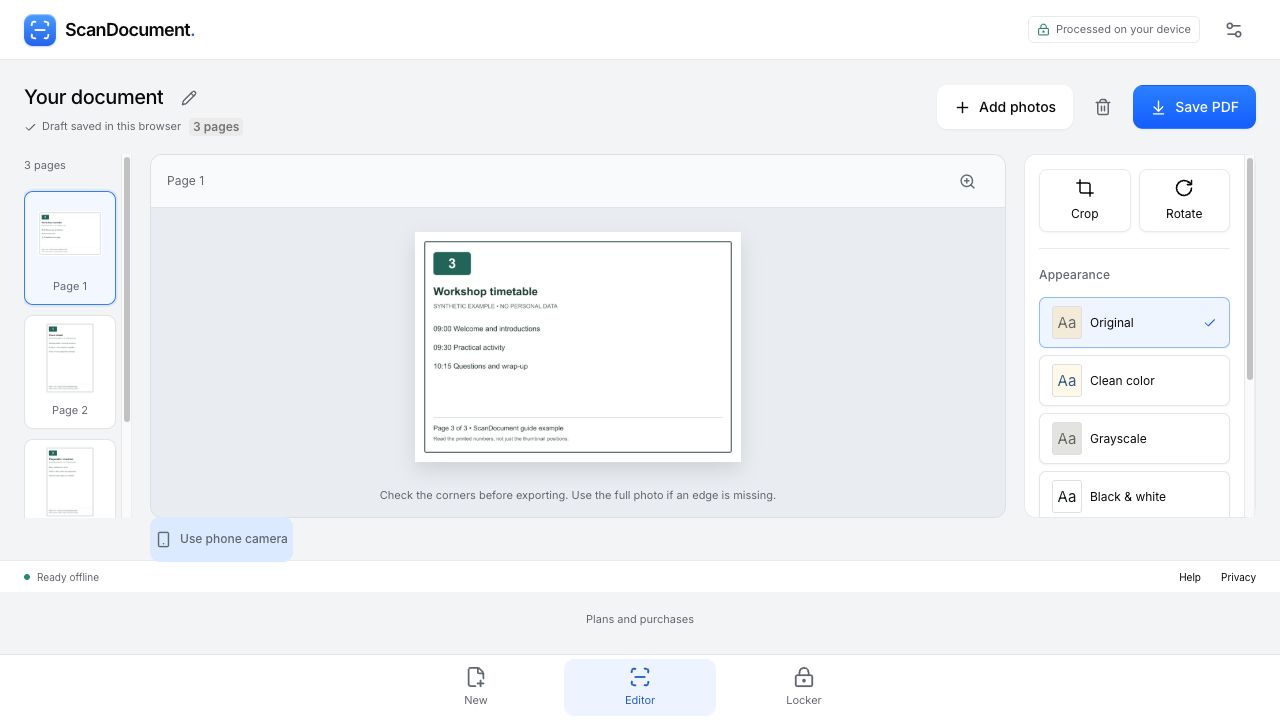
Read the number printed on the sheet, not just the thumbnail label. In our example, we selected the first thumbnail, which contained printed page 3, and chose Move page later twice. The final sequence is 1, 2, 3.
On a phone-width screen, select the page and tap More to find the move controls. The menu stays open after a move; close it when finished. If a sheet appears twice, select the unwanted copy and choose Remove page. Check its content before removing it.
4. Check orientation and readability
Open each page at full size. Use Rotate if the text is sideways or upside down. A landscape sheet can be correct as it is: the aim is upright text, not making every sheet portrait.
Compare Original with Clean color if a photo needs cleanup. On a narrow screen, open Appearance first. Keep the version that preserves faint writing and signatures. Our clean synthetic images use Original; filters cannot restore missing or blurred text.
5. Generate, download and check the PDF
Use the pencil beside the document title to give the file a recognizable name, then choose Save PDF. We chose Balanced quality and Fit to photo to keep two portrait pages and one landscape page. Fit to photo follows image proportions; it does not preserve the physical dimensions of the original paper. Choose A4 or US Letter if the receiving form requires it.
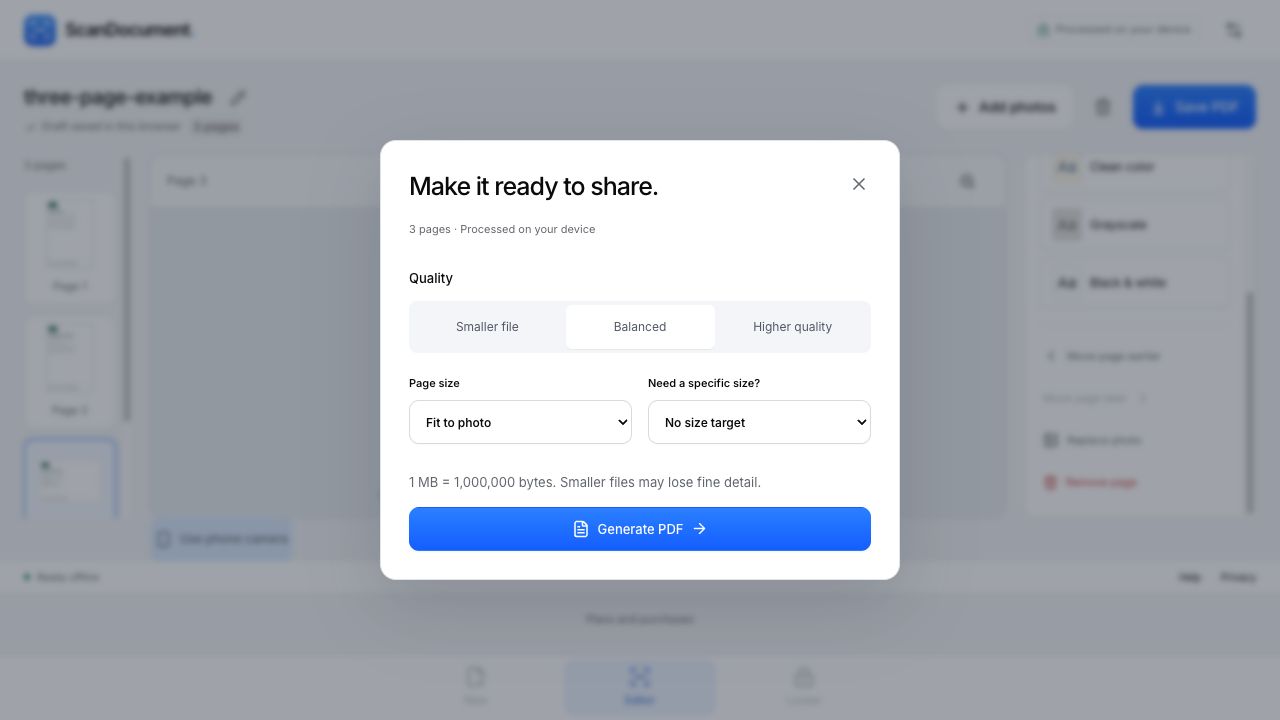
Choose Generate PDF, check the displayed page count and actual size, then choose Download PDF. A saved browser draft is editable in the app; it is not the downloaded file to attach or upload.
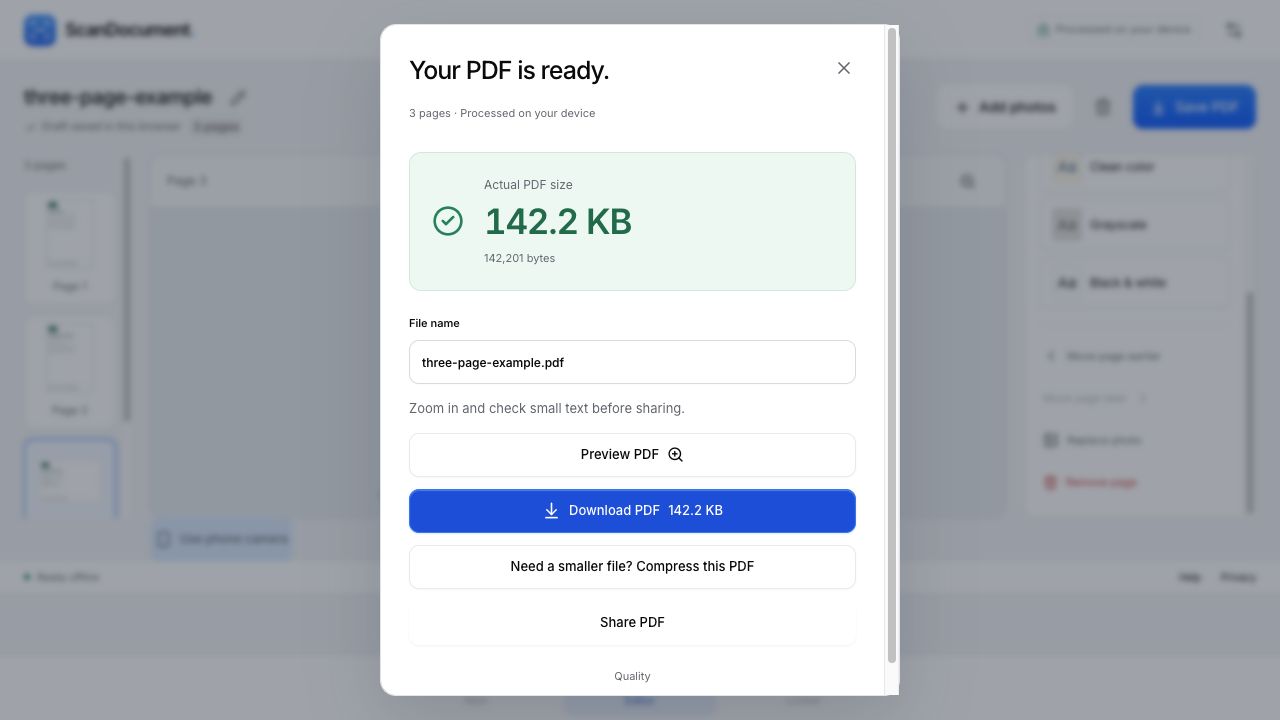
Open the downloaded file from your browser's downloads list. Confirm all three pages are present, in order and readable—including the last sheet. Our actual three-page example PDF contains a cover, checklist and timetable, in that order. It uses synthetic content with no personal data. Your file size will depend on your images and settings.
Common problems
- The result has only one page
- Check that all photos are in the same draft before generating. Use Add photos to bring in a missing sheet, then generate and download again. Count the pages in the downloaded PDF, not only the editor.
- The file is too large for an upload form
- Set the required limit in the export dialog and check the actual size after generation. A target is not a guarantee. If it is missed, keep a readable original and try the PDF size reducer. See the scanned-file size guide for the trade-offs.
- Can I merge existing PDFs here?
- This scanner workflow combines images into a new PDF. For existing PDFs on a Mac, Apple's Preview instructions explain combining them. Duplicate the originals first because Preview saves changes automatically.
- Can I search or copy the text?
- This export is an image-based PDF, without an OCR text layer. If searchable text is required, use an OCR-capable tool.
- Do my pages leave this device?
- The direct image-upload and PDF-generation workflow shown here runs on your device. The optional phone-to-computer feature encrypts photos on the phone and relays them through our transfer service; document files are not stored on the server. Read the privacy details.
Built-in and phone-app alternatives
On iPhone or iPad, Notes and Files let you add more scans before finishing a document. Follow Apple's scanning instructions. In Google Drive on Android, use Add for another page, then finish and select PDF when saving; see Google's guide. These are alternatives for photographing new paper; the walkthrough above starts with existing images.
How we checked this guide
On September 27, 2026, we imported three synthetic images, reviewed every boundary, changed their order and downloaded the linked three-page, 142,201-byte PDF. We inspected each exported page and its printed number. The original screenshots show a preview build with unchanged scanner code in Chromium 153 on macOS 26.6.2, including a resized 390-pixel-wide browser. This verifies browser controls and export, not a physical phone camera or Android/iOS download behavior. Native alternatives are based on the linked official documentation.
Keep the whole packet together
Add your pages ↗Preview: up to 3 pages per PDF. No account needed.