REDUCE SCANNED DOCUMENT SIZE
A smaller scan that still reads clearly.
Scanned documents often store a picture of every page. Reducing those pictures can help, as long as the important details stay visible.
Choose a PDF to reduce →By ScanDocument · Updated September 14, 2026
1. Set a size target
Scans store a picture of each page, which can make PDFs large. Choose the recipient’s limit for the whole document: 1 MB leaves more room for detail than 500 KB. Some documents cannot fit without losing readability.
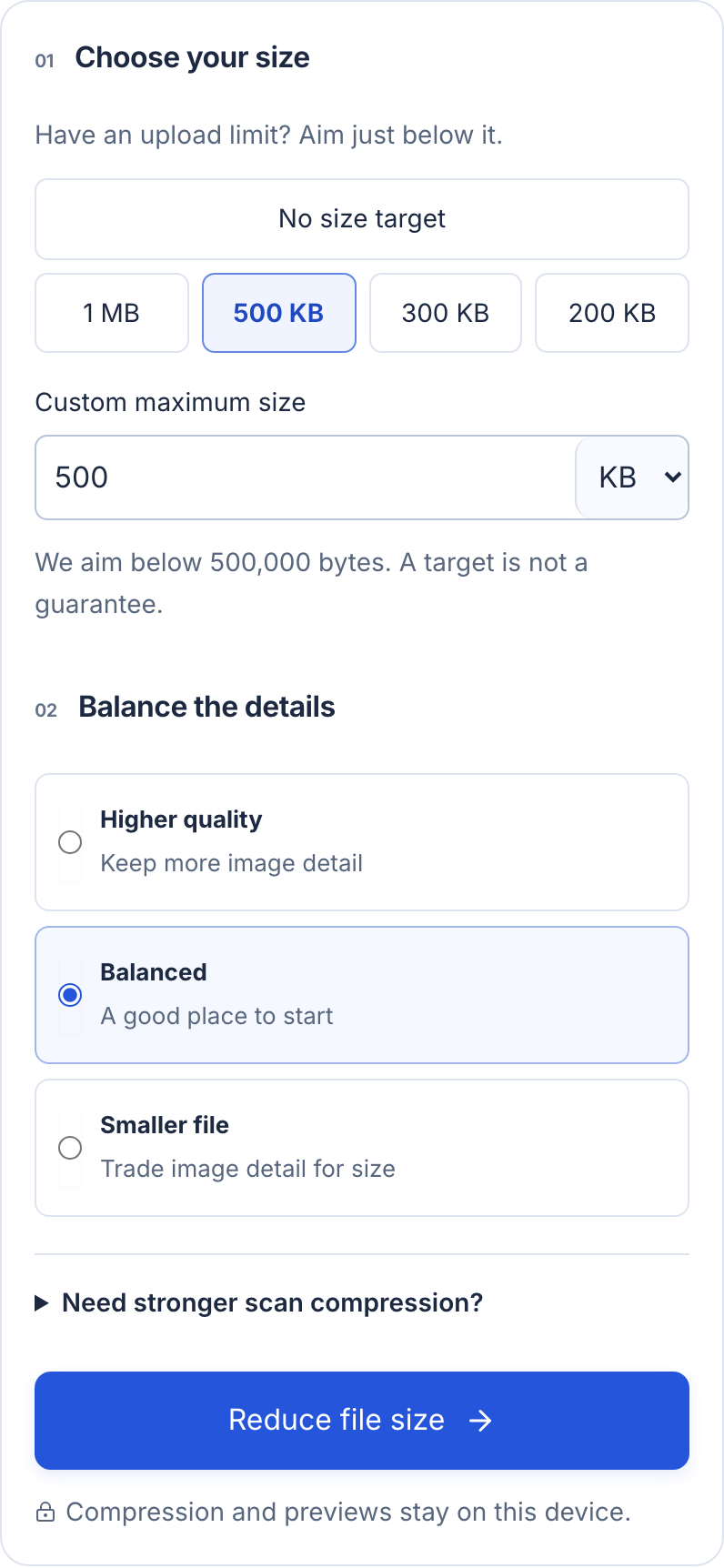
- Set your limit. This example uses 500 KB.
- Start with Balanced. Check quality after reducing.
- Select Reduce file size to create a separate copy.
2. Keep the features you need
Start with standard compression to keep text, links and forms. A scan may have a searchable OCR layer worth preserving.
If you need a smaller visual copy, try the optional image-only mode. It can remove searchable text and interactive features. Grayscale also removes color from stamps and highlights.
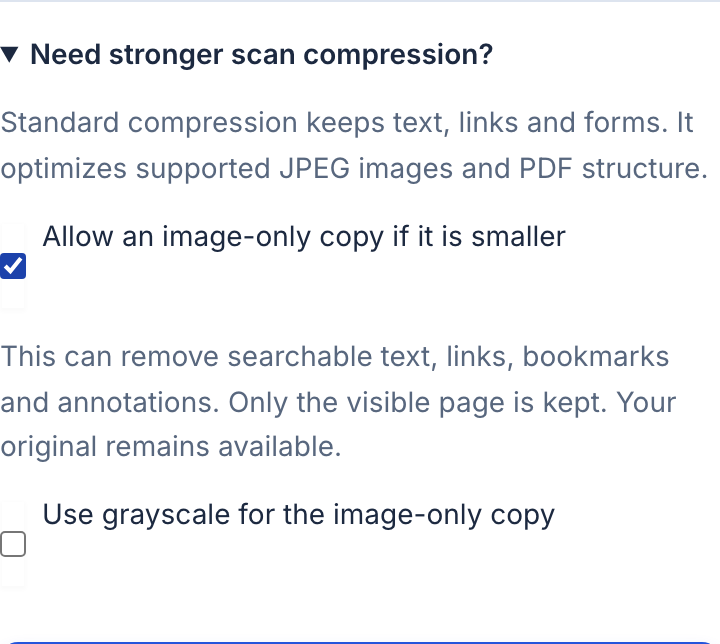
- Optional: allow a visual copy that can lose searchable text, links and forms.
- Keep grayscale off when color matters.
3. Compare every page
Check small print, thin lines and handwriting. If details look blurry, use higher quality. Each attempt starts from your original PDF.
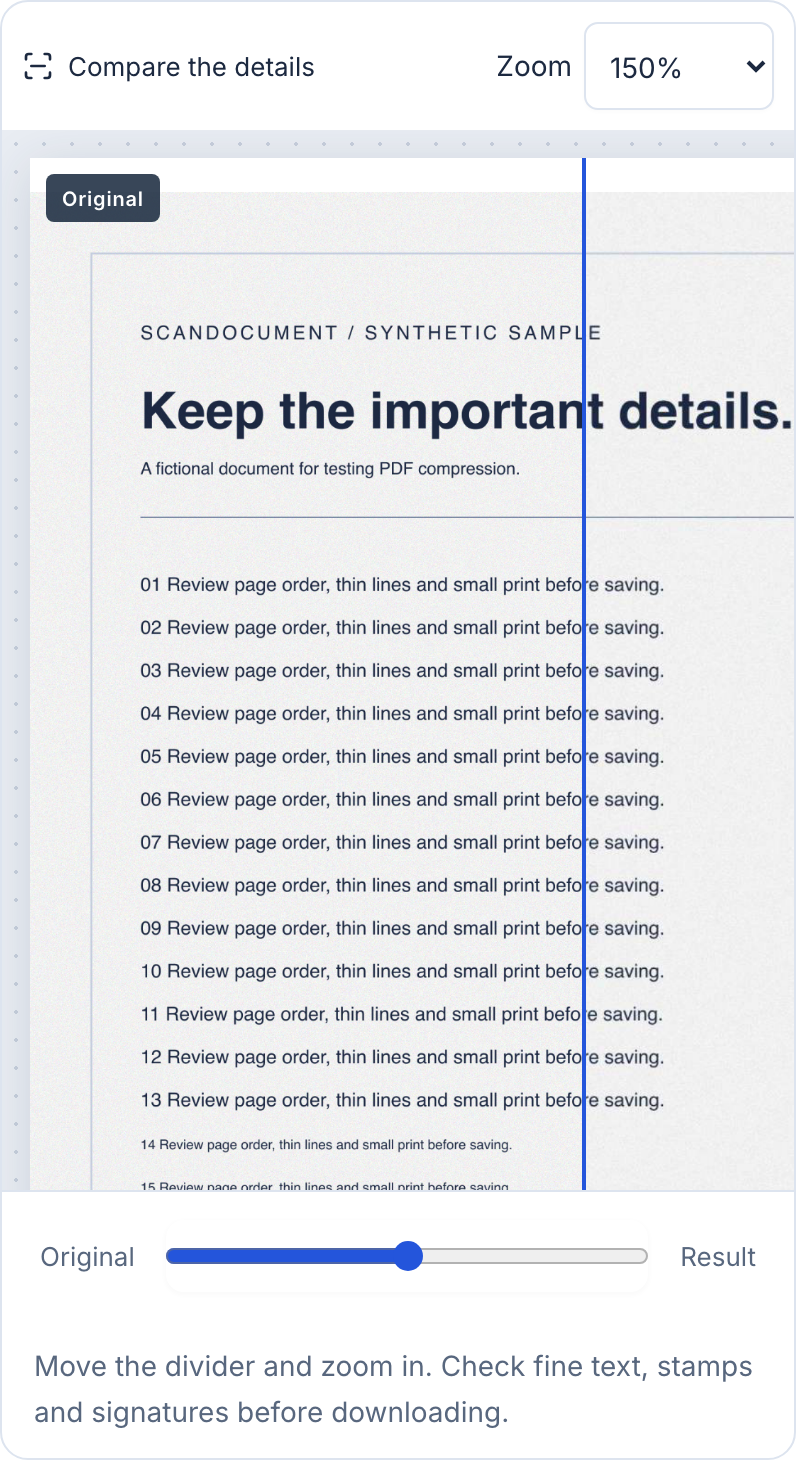
- Zoom in on small text and stamps. Shown here: 150%.
- Move the slider to compare. Repeat for every page.
4. Check the size and download
Confirm the target status and page count, then save the reviewed copy. Keep your original.
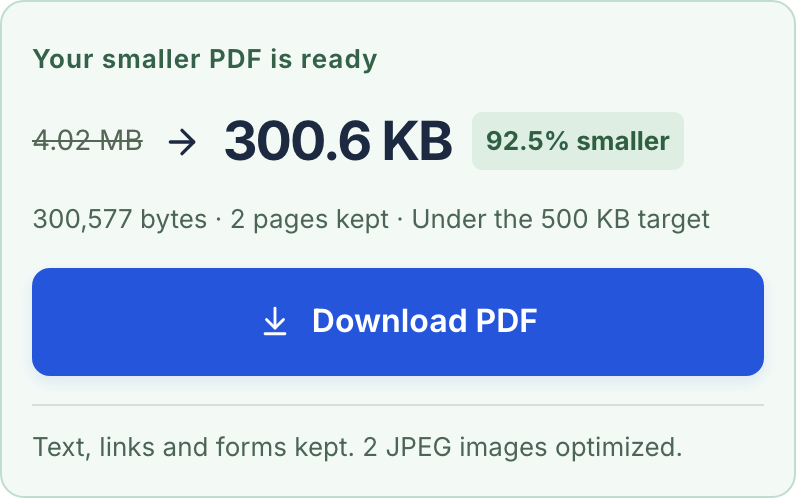
- Check the exact byte count, pages kept and whether the result is under your target.
- Download the reviewed copy, then attach that file instead of the original.
Does this change the paper size?
No. It reduces file size in bytes and keeps page dimensions and order. Export Word documents to PDF first.
Try it with a sample
These annotated screenshots use a sample PDF: 4.02 MB → 300.6 KB, with 2 pages kept. Your results will vary. Open the smaller sample.
Make a PDF smaller →